> ## Documentation Index
> Fetch the complete documentation index at: https://docs.humiris.ai/llms.txt
> Use this file to discover all available pages before exploring further.
# Getting Started with Humiris AI in Cline
> Save 2 hours per developer every single day in vscode with cline
### **Step 1: Install Cline in Visual Studio Code**
1. Open **VS Code**.
2. Go to the **Extensions** tab (or press Ctrl+P and type ext install cline.cline).
3. Install the extension called **Cline**.
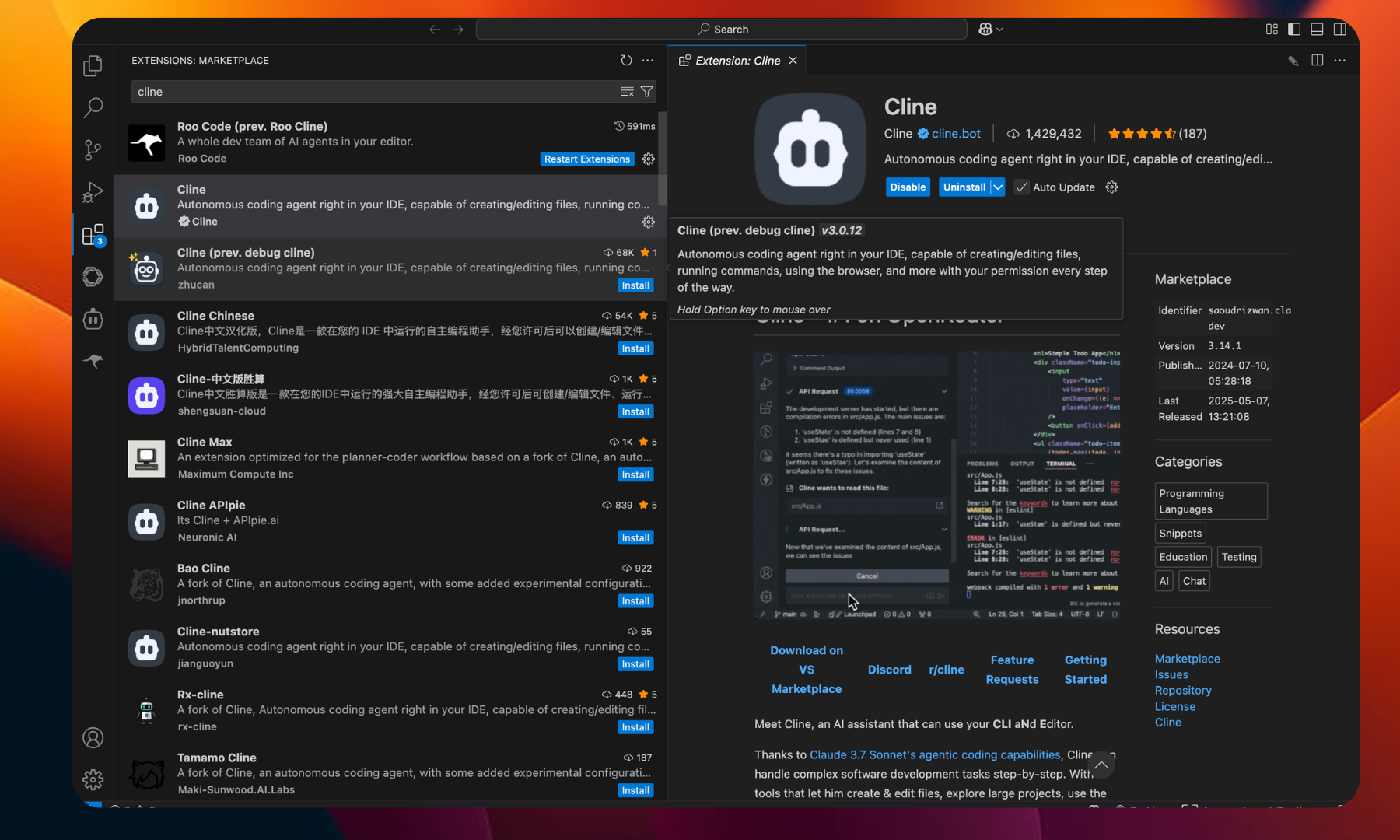 Once installed, click the **Cline icon** in the sidebar to launch it.
**Step 2: Get Your Humiris API Key**
1. Go to[ ](https://www.humiris.ai)[humiris.ai](http://humiris.ai) and create an account.
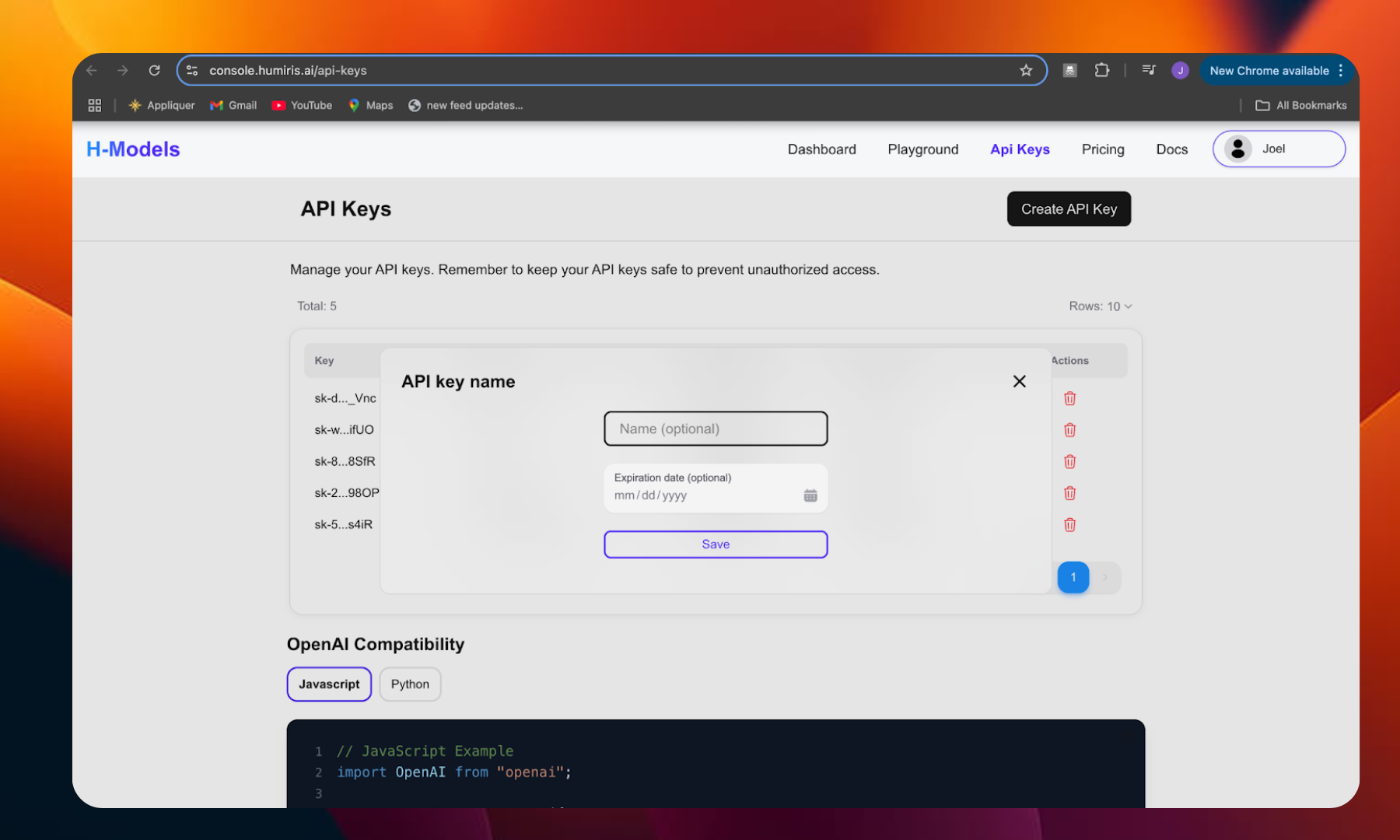
2. After logging in, go to the **API Keys** section.
3. Click **“Create API Key”** to generate a new key.
4. Copy the key for later.
Once installed, click the **Cline icon** in the sidebar to launch it.
**Step 2: Get Your Humiris API Key**
1. Go to[ ](https://www.humiris.ai)[humiris.ai](http://humiris.ai) and create an account.
2. After logging in, go to the **API Keys** section.
3. Click **“Create API Key”** to generate a new key.
4. Copy the key for later.
 ### **Step 3: Configure Cline with Humiris**
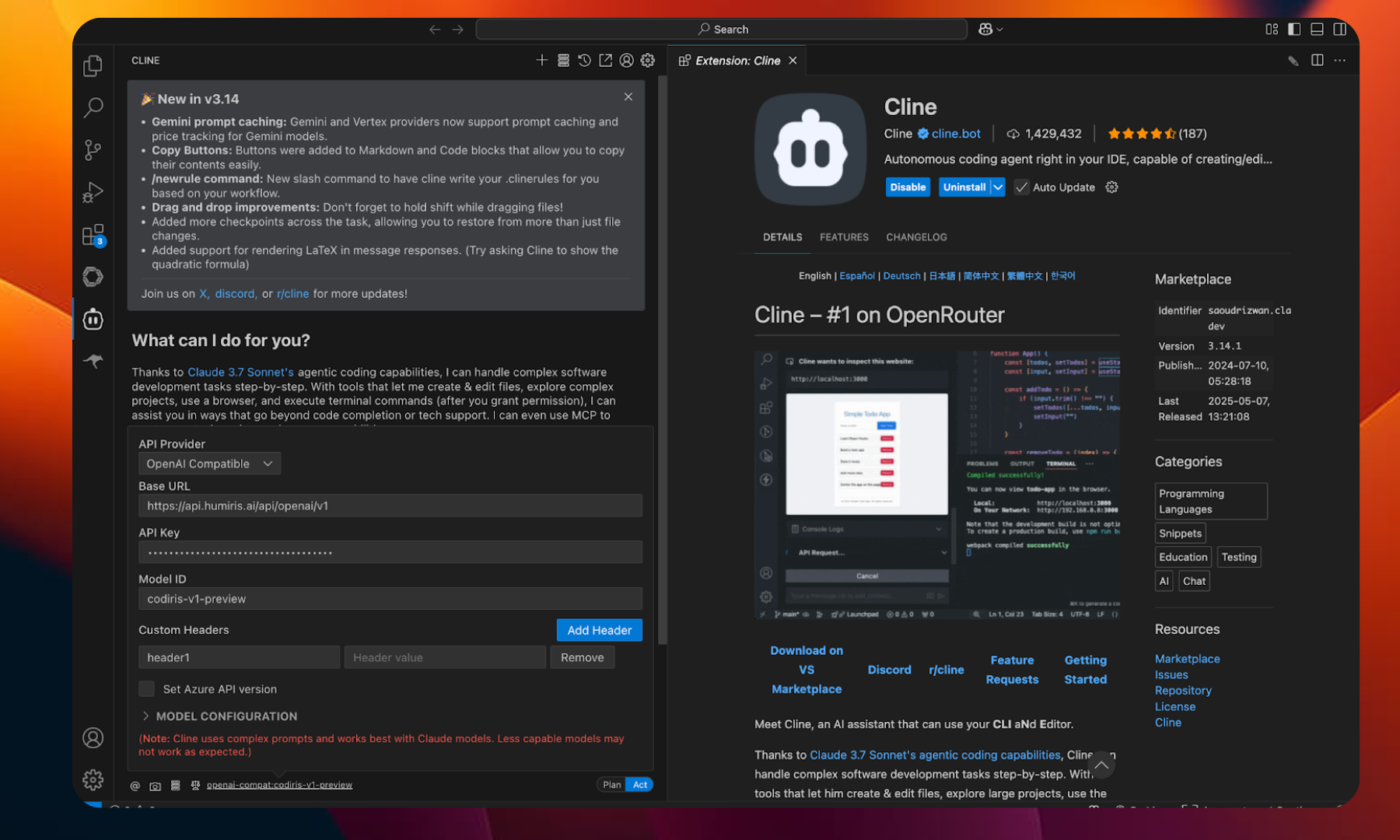
1. Inside Cline, click the **Settings (⚙️)** button.
2. Under **API Provider**, select **OpenAI Compatible**.
3. Fill out the fields as follows:
* **Base URL**: [https://api.humiris.ai/api/openai/v1](https://api.humiris.ai/api/openai/v1)
* **API Key**: Paste the API key from your Humiris account.
* **Model ID**: Choose one of the supported Humiris models (e.g. codiris-v1-preview, codiris-v1-mini,daddy1,baby1, mommy1-adv, etc.)
Click **Save**.
### **Step 3: Configure Cline with Humiris**
1. Inside Cline, click the **Settings (⚙️)** button.
2. Under **API Provider**, select **OpenAI Compatible**.
3. Fill out the fields as follows:
* **Base URL**: [https://api.humiris.ai/api/openai/v1](https://api.humiris.ai/api/openai/v1)
* **API Key**: Paste the API key from your Humiris account.
* **Model ID**: Choose one of the supported Humiris models (e.g. codiris-v1-preview, codiris-v1-mini,daddy1,baby1, mommy1-adv, etc.)
Click **Save**.
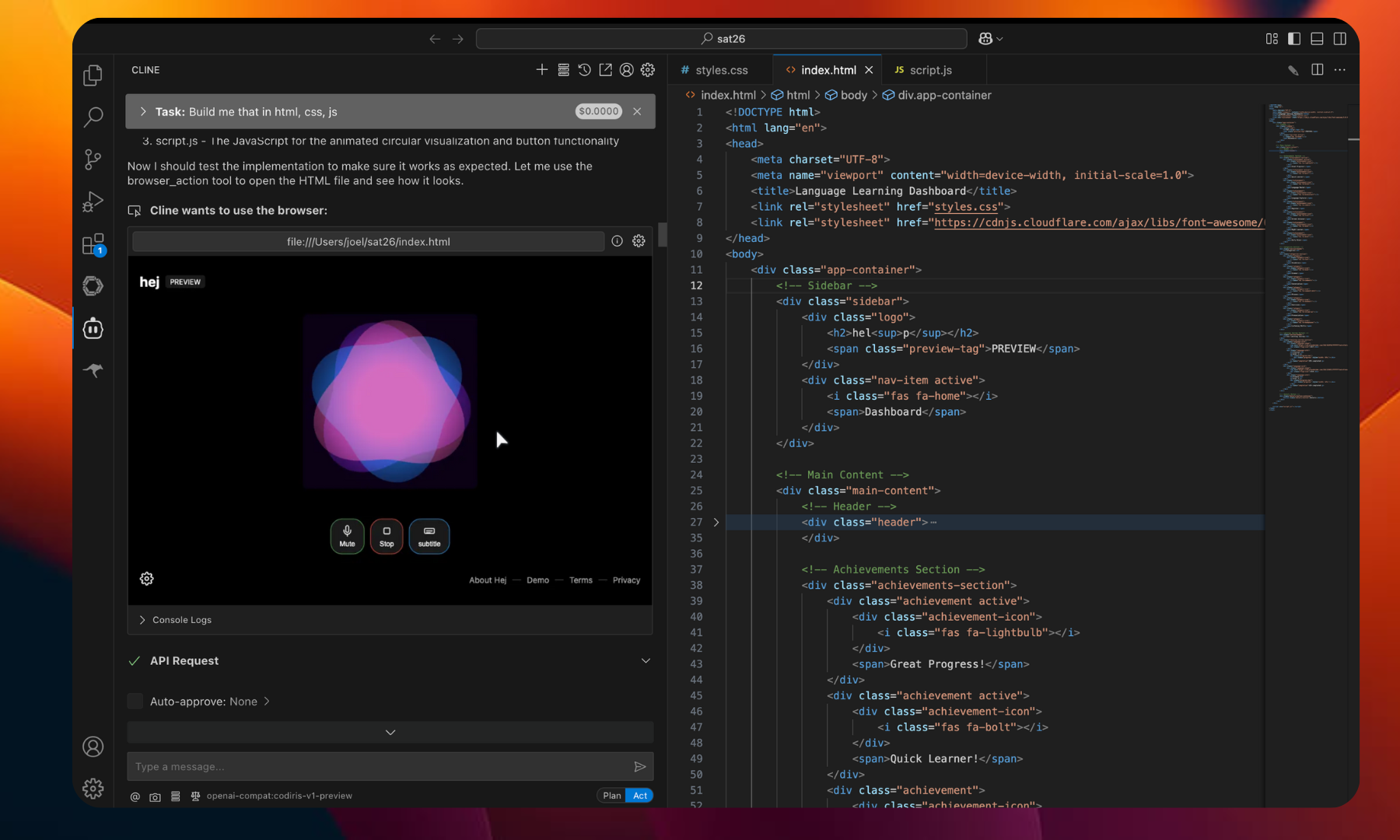
 ### **Step 4: Use Humiris Models in Cline**
Once setup is complete:
* You can now write prompts or coding requests directly into Cline.
* Cline will use the selected **Humiris model** to help with code generation, explanations, and other dev tasks.
### **Step 4: Use Humiris Models in Cline**
Once setup is complete:
* You can now write prompts or coding requests directly into Cline.
* Cline will use the selected **Humiris model** to help with code generation, explanations, and other dev tasks.